
Kling AI Review 2026: Is Kling 3.0 Worth $8.80/Mo?
Kling 3.0 makes video and audio in one pass. Free accounts get 66 credits a month; paid plans run $6.99 the first month, then $8.80/mo ($6.60 annual).
Read Article →
The short version of how to use Kling AI: open Generate, pick VIDEO 3.0, type a prompt, set 720p or 1080p and a length, and press Generate. A free account gets 66 credits a month, enough for one five-second 1080p clip with audio.
This guide walks through Kling AI 3.0’s Generate tab: a text prompt, a start frame, a multi-shot storyboard, and Motion Control. It’s built for beginners on the free plan, but it also covers the settings that matter once you’re ready to pay.
Sign up free and get 66 monthly credits to try Native Audio, image-to-video and multi-shot storyboards.
Open Kling AI →An account is the only real requirement. Google or email sign-up both work. I went through this on a free account signed in with Google, with the plan’s free credits already on the account and no card required.
Beyond that: a browser, a photo for image-to-video, and a short clip for Motion Control. The Kling AI review covers pricing and the full model line-up in more depth.
The Video Generation tab opens with VIDEO 3.0 selected, with VIDEO 3.0 Turbo and VIDEO 2.6 one click away in the picker. What VIDEO 3.0 added is worth a look before picking a model.
Open Generate, choose Video Generation, and leave VIDEO 3.0 selected unless you want the cheaper 2.6 model or a faster 3.0 Turbo render.
VIDEO 3.0 is the one with Native Audio and multi-shot storyboards. Turbo renders faster, 2.6 is the cheaper audio-native option, and anything older sits under More.
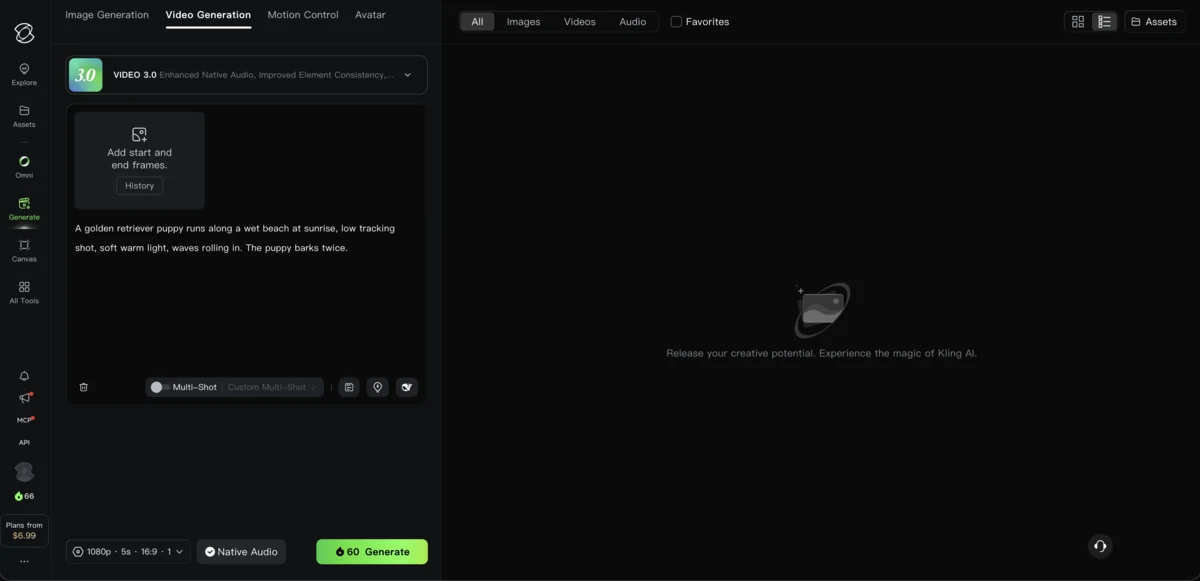
The Generate button updates its credit cost as soon as a model and prompt are set.
Describe the subject, the action, the scene, the camera move and the light in one paragraph, and put any spoken line in quotation marks so Native Audio voices it.
Native Audio speaks English, Chinese, Japanese, Korean and Spanish, with tags for dialect and accent. Dialogue in an unsupported language is translated to English.
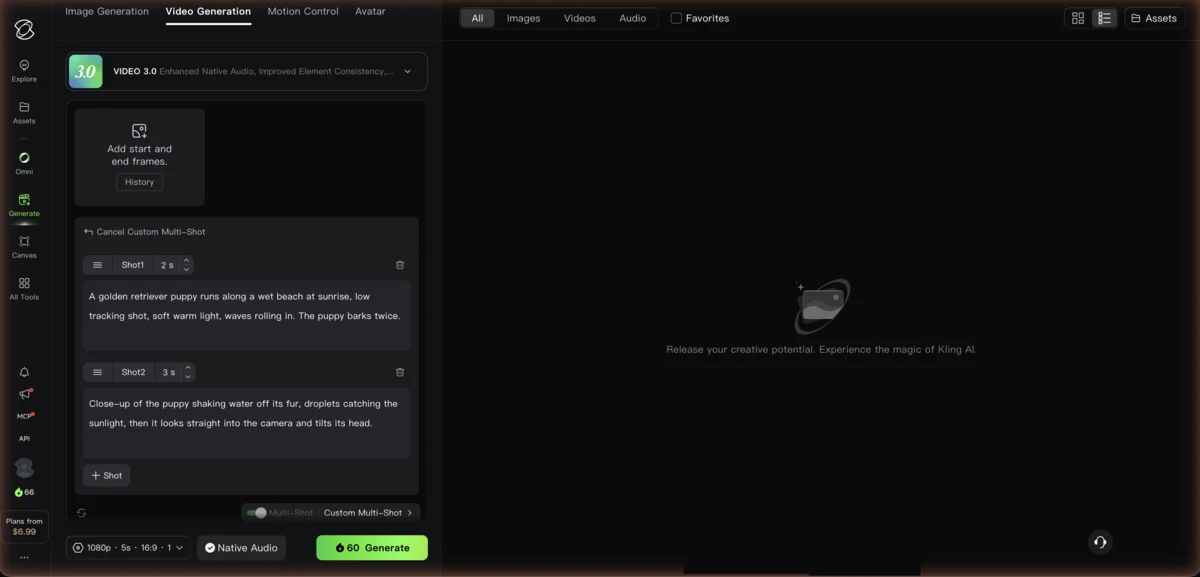
The example prompt used for the screenshots here reads: “A golden retriever puppy runs along a wet beach at sunrise, low tracking shot, soft warm light, waves rolling in. The puppy barks twice.”
A few small fixes help:
For a broader walkthrough of prompt-writing across tools, see the guide to making AI videos.
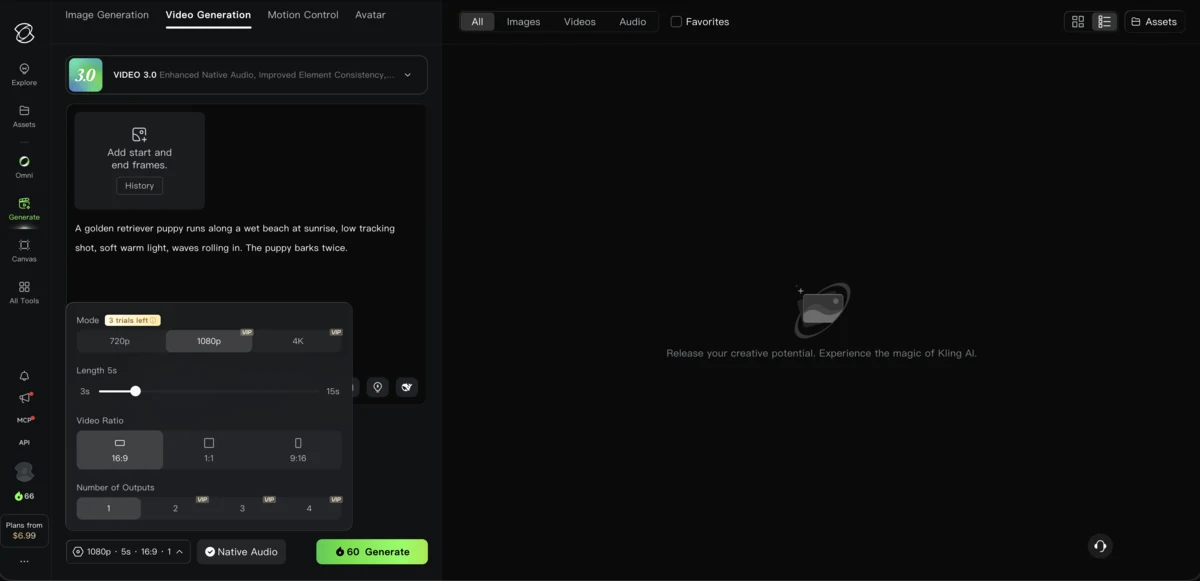
Open the settings pill under the prompt to choose 720p or 1080p, drag the length slider between 3 and 15 seconds, pick 16:9, 1:1 or 9:16, and watch the credit price update on the Generate button.
The settings pill reads roughly “1080p · 5s · 16:9 · 1” and opens into four controls: Mode, Length, Video Ratio and Number of Outputs.
Mode offers 720p, 1080p and 4K. On a free account 1080p and 4K carry a VIP tag, and 4K showed three trial uses left. Length runs 3 to 15 seconds, Video Ratio covers 16:9, 1:1 and 9:16, and Outputs run 1 to 4, VIP-only past 1.
The price on the Generate button dropped from 60 to 40 credits the moment I switched Native Audio off, and read 50 on VIDEO 2.6.
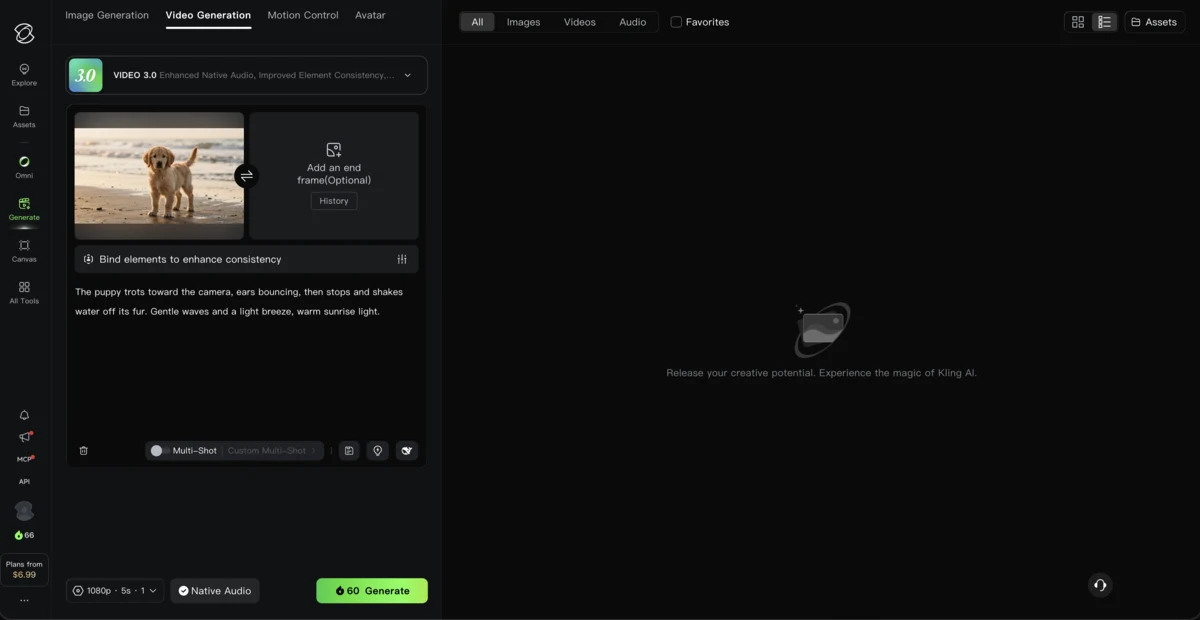
Upload a still as the start frame, optionally add an end frame, and describe only the motion in the prompt; the video keeps the photo's aspect ratio.
I loaded a photo of a puppy as the start frame. The box that reads “Add start and end frames” splits in two: start frame required, end frame optional.
A row labeled “Bind elements to enhance consistency” also appears, and the ratio option disappears since the output now follows the photo. The prompt only needs to describe motion: “The puppy trots toward the camera, ears bouncing, then stops and shakes water off its fur. Gentle waves and a light breeze, warm sunrise light.”
Switch on Multi-Shot, open Custom Multi-Shot, and give each shot its own duration and description, up to 15 seconds in total.
A Multi-Shot toggle sits next to Custom Multi-Shot, which replaces the prompt box with a storyboard panel: Shot1 at 2 seconds and Shot2 at 3 seconds by default, each with its own description field.
Cancel Custom Multi-Shot backs out entirely, and Kling’s guide caps a storyboard at 6 shots and 15 seconds total, each free to set its own duration, framing and camera move.
The second shot here reads: “Close-up of the puppy shaking water off its fur, droplets catching the sunlight, then it looks straight into the camera and tilts its head.”
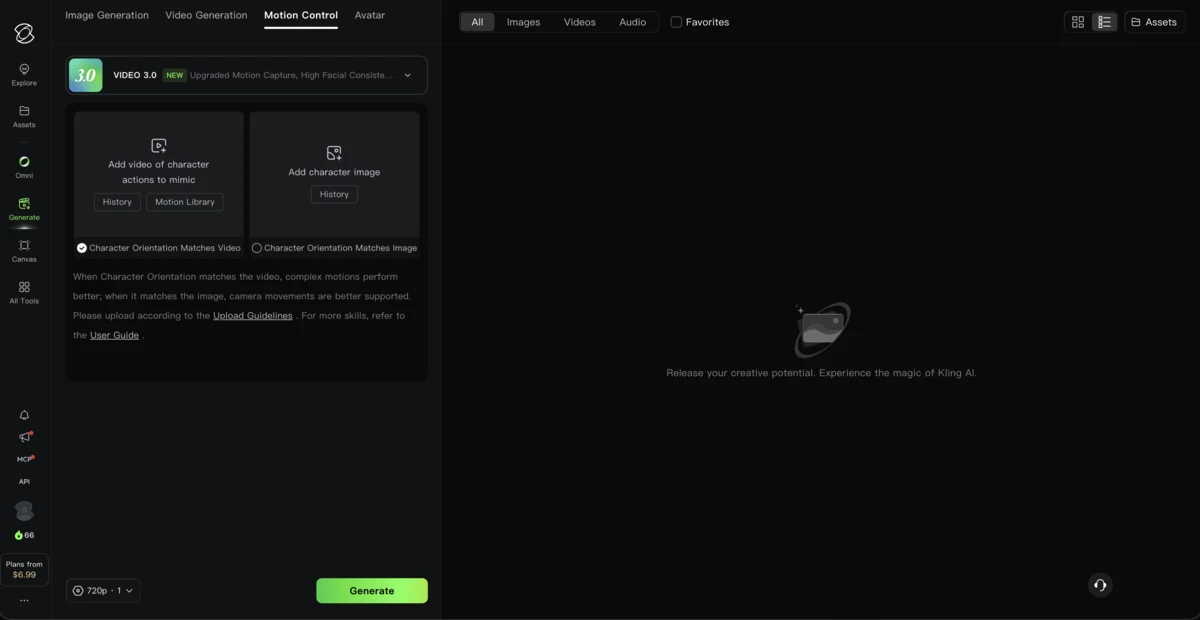
Open the Motion Control tab, add a reference clip of the movement or pick one from the Motion Library, add a character image, and generate.
Motion Control on VIDEO 3.0 asks for two inputs: a video of the movement to copy, with History and Motion Library buttons attached, and a character image.
Two radio options set orientation: “Matches Video,” the default, suits complex motion, and “Matches Image” favors camera movement instead, per Kling’s help text. The reference clip follows VIDEO 2.6 guide rules: 3 to 30 seconds, a short edge of at least 340 pixels, a long edge under 3,850, and no cuts or scene changes.
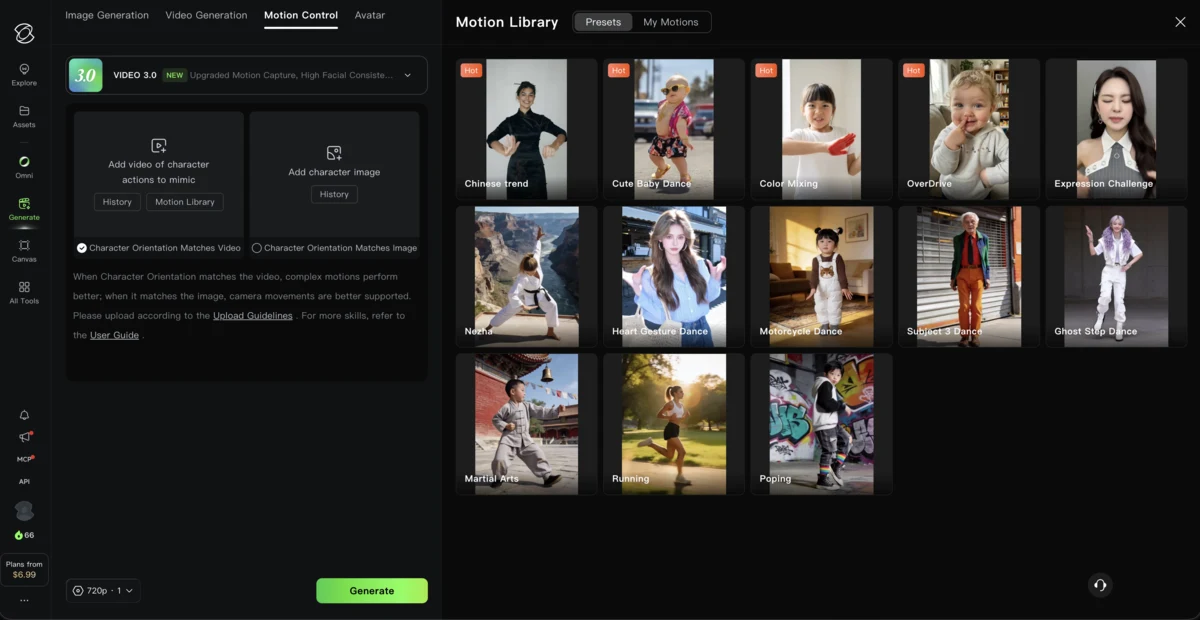
Motion Control runs 12 or 9 credits a second on VIDEO 3.0, and 8 or 5 on VIDEO 2.6.
A five-second 1080p VIDEO 3.0 clip with Native Audio on costs 60 credits; the same clip with audio off costs 40.
Per-second rates from Kling's quick-start guides, checked 16 September 2026
| Generation | 1080p | 720p |
|---|---|---|
| VIDEO 3.0 with Native Audio | 12 credits/s | 9 credits/s |
| VIDEO 3.0 without audio | 8 credits/s | 6 credits/s |
| VIDEO 3.0 Omni with a video input | 16 credits/s | 12 credits/s |
| Motion Control 3.0 | 12 credits/s (Professional) | 9 credits/s (Standard) |
| Motion Control 2.6 | 8 credits/s (Professional) | 5 credits/s (Standard) |
| Voice control add-on | +2 credits/s | +2 credits/s |
Sixty-six credits do not stretch far at full price, so testing at 720p without audio, 30 credits for five seconds, gets more attempts. Keep early tries short and switch Native Audio on only for the keeper.
Standard's first month runs $6.99, then $8.80 a month, for 660 credits, a fast-track queue and watermark-free commercial output.
See Kling AI Plans →Kling’s credit panel lists the free plan’s monthly grant as 66 credits, so one five-second 1080p clip with audio, at 60 credits, uses most of a month’s allowance. Free output runs one clip per job, carries a watermark and is not licensed for commercial use. 1080p and 4K both carry a VIP tag, 4K allows three trial uses, and element storage stops at 30.
The free queue can refuse a new job outright at busy hours. Kling’s own upgrade screen suggests off-peak hours or a paid plan as the only ways around it.
The four paid plans, from the pricing page:
If the real question is whether to pay Kling or a different tool, the Kling AI vs InVideo comparison covers that choice.
Omni is Kling’s reference-driven mode: upload images, clips or saved elements and type @ to point a prompt at them. Without a video input, it takes up to 7 reference images; add one clip and the limit drops to 4 images or elements plus a single 3 to 10 second clip.
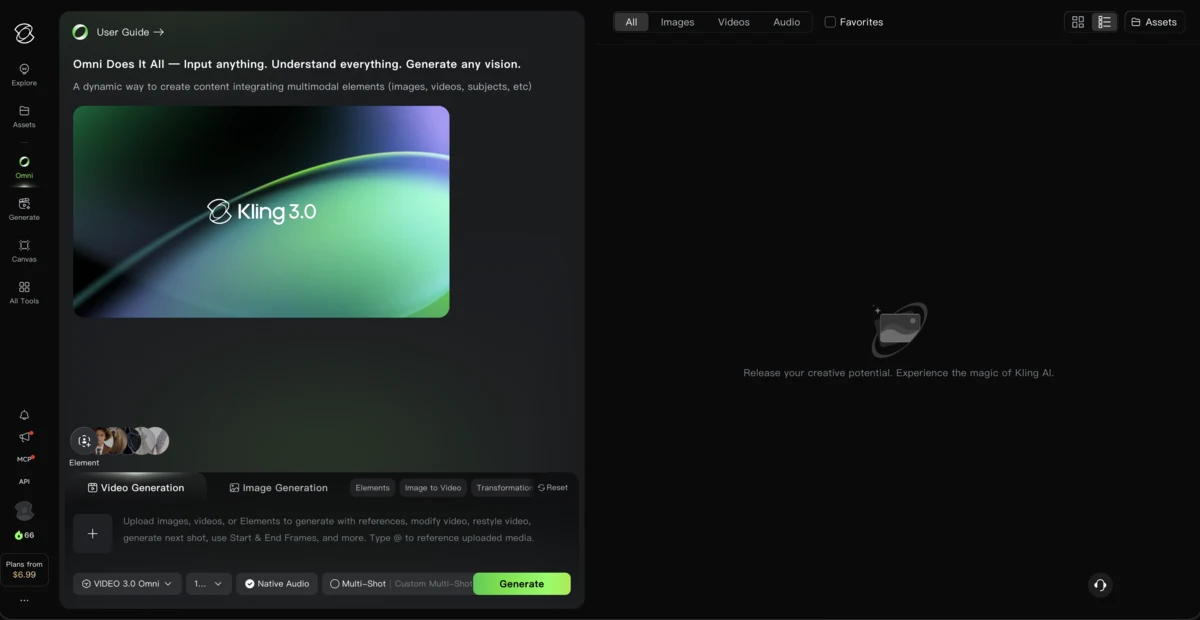
An element is built from either 1 main image plus up to 3 more angles, or a 3 to 8 second clip of a single character, and creating one requires accepting Kling’s Video Element Feature Usage Guidelines. Once saved, it’s called into a prompt with @Name, and VIDEO 3.0 binds up to 3 elements per generation.
Element storage scales with the plan: 30 free, 50 on Standard, 150 on Pro and Premier, 500 on Ultra. For more step-by-step guides, browse the tutorials page.
Job refused at busy hours. The free queue can refuse a submission outright during busy periods. Trying off-peak, or upgrading to a paid plan’s fast-track queue, are the only ways around it.
Price higher than expected. A jump in cost usually means Native Audio is on, resolution is 1080p or 4K, or outputs are set above 1. Check the settings pill before pressing Generate.
Dialogue comes out in the wrong language. Native Audio only speaks English, Chinese, Japanese, Korean and Spanish natively. Anything written in another language gets translated to English rather than spoken as written.
Options greyed out with a VIP tag. A VIP tag marks a paid-only perk: 1080p, 4K, extra outputs, watermark removal, commercial licensing. None of it unlocks without a subscription.
66 free credits are enough to learn the Generate tab. Upgrade only once the free queue gets in the way.
Try Kling AI →Sign up for a free Basic account and use its 66 monthly credits. Testing at 720p without Native Audio costs 30 credits for five seconds, stretching the allowance further. Free output carries a watermark, isn't licensed for commercial use, and busy-hour refusals make off-peak generation worth it.
A five-second 1080p VIDEO 3.0 clip costs 60 credits with Native Audio on, 40 without. Per-second rates run 12 at 1080p and 9 at 720p with audio, or 8 and 6 without. Motion Control runs 12 or 9 a second on VIDEO 3.0, and 8 or 5 on VIDEO 2.6.
Every account gets a free monthly grant, 66 credits on Basic, plus top-up credits from the credit panel. A paid subscription adds a larger monthly allowance, starting at 660 credits on Standard.
Free jobs sit in a shared queue that can refuse new submissions outright during busy hours. Kling says its paid fast-track queue returns results in as fast as 3 minutes, though that figure is Kling's own.
Native Audio speaks English, Chinese, Japanese, Korean and Spanish, each with dialect and accent tags. Dialogue in any other language gets translated to English before it's spoken.
A single VIDEO 3.0 generation runs 3 to 15 seconds, one shot or a Custom Multi-Shot storyboard of up to 6 shots inside that window. Paid plans list video extension as an added perk; see the Kling AI review for details.
 Featured 15 min read
 Kling 3.0 makes video and audio in one pass. Free accounts get 66 credits a month; paid plans run $6.99 the first month, then $8.80/mo ($6.60 annual).
Read Article → 18 min read
 Kling AI makes cinematic clips from $6.99 for the first month; InVideo plans start at $20/mo, with Seedance from $60/mo. Free plans and credit costs compared.
Read Article → 13 min read
 Step-by-step guide to making AI videos in 2026. Free tools, real workflows, and budget tiers from $0 to $60/mo. No editing experience needed.
Read Article →